How Do You Issue an Exemption Invoice? Sample Draft with Code 335
On an exemption invoice, you select the Exemption type, set VAT to 0% on the line, add Full or Partial Exemption via Add/Remove Tax, and choose a valid exemption code (335 in the example). A 0-VAT line without a code is not accepted.
Last checked against regulations: October 28, 2026
Contents
- What is an exemption invoice, and when is it issued?
- Sample draft summary
- Sample invoice: preview of the draft
- How do you issue an exemption invoice? Step-by-step draft
- Full exemption vs. partial exemption
- Common mistakes on exemption invoices
- If the buyer isn't an e-invoice user or the lines are mixed
- From draft to invoice
This guide answers the question of how to issue an exemption invoice using a real sample draft: on the e-invoice (e-Fatura) portal, we prepared a draft of type Exemption (İstisna) with exemption code 335 (delivery of printed books), and we explain every field one by one. The draft was not sent; it was only stored with "Save to Drafts". Buyer and sender details are hidden in this article.
No VAT (KDV) is calculated on an exemption invoice, but that does not mean "set the VAT rate to 0% and move on." Every 0-VAT line must carry a valid exemption code showing why it is tax-free. Below you'll see where and how this code is added in the portal, including the step where people get stuck most often.
What is an exemption invoice, and when is it issued?
An exemption invoice is the e-invoice type issued for a delivery or service that is exempt from tax under the VAT Law (ISTISNA in UBL-TR). The invoice shows the tax base, the calculated VAT is zero, and the line carries a 3xx (full exemption) or 2xx (partial exemption) code showing which article of the law it relies on.
Marketplace sellers most often need this type in the following cases:
- When you ship goods directly to a buyer abroad (export of goods; a separate code applies if you are the manufacturer),
- When you sell a product the law treats as exempt (like the printed book in our example),
- In special cases such as international transport and deliveries to diplomatic missions.
If you deliver goods to an exporter in Türkiye so that they can export them, the invoice type is not Exemption but Export-Registered (İhraç Kayıtlı). For a step-by-step example, see the export-registered invoice (701) sample draft guide. You'll find the full code list in the e-invoice exemption codes article.
Sample draft summary
We prepared the draft on the portal's Create Invoice (Fatura Oluştur) screen. From top to bottom, the screen consists of these sections: Basic Information, Buyer Information, Invoice Information, Additional Information, Product / Service, Totals and Invoice Note. On the right are the Invoice Summary panel and the "Invoice Preview", "Save to Drafts", "Create invoice" and "Cancel" buttons.
| Field | Value in the sample draft |
|---|---|
| Buyer | Sample Buyer A.Ş. (registered e-invoice user) |
| Tax ID number (VKN) | (hidden) |
| Scenario | Basic e-Invoice |
| Invoice Type | Exemption |
| Currency | Turkish lira |
| Product Name | SAMPLE PRODUCT - Printed Book |
| Quantity / Unit | 50 Pieces |
| Unit Price | 200 TL (example) |
| VAT Rate | 0% |
| Tax type | Full Exemption |
| Exemption code | 335 – delivery of printed books and periodicals (VAT Law 13/n) |
| Amount payable | 10,000.00 TL (sample total) |
We chose Basic e-Invoice as the scenario; Commercial e-Invoice can also be chosen where the buyer's acceptance/rejection response is required. For the differences between scenarios, take a look at the e-invoice scenarios and invoice types guide.
Sample invoice: preview of the draft
The image below is the draft's Invoice Preview output from the portal. Seller and buyer details, the ETTN and the QR code data were changed; the product, amount, code and note fields are the same as in the draft. ABC2099999999999 in the Invoice No field is a placeholder assigned for the preview; the real number is assigned when the invoice is created.
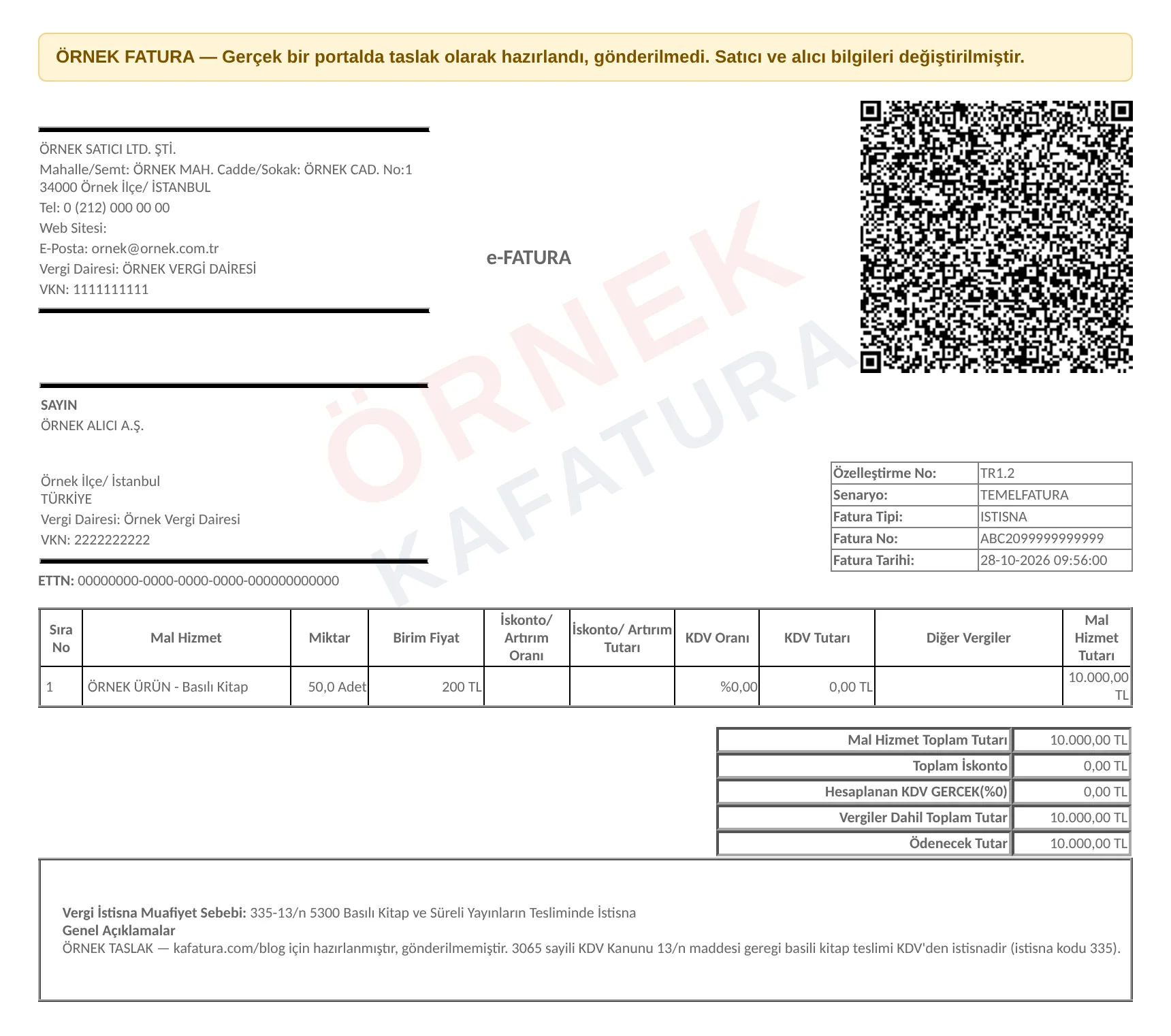
Points to note in the image:
- The line shows VAT Rate 0.00% and VAT Amount 0.00 TL; the amount payable, as a sample total, is 10,000.00 TL.
- The bottom box contains the line Tax Exemption Reason: 335-13/n. Had no code been selected, this line would be missing and the 0-VAT invoice would not pass the Turkish Revenue Administration (GİB) check.
- When we reopened the draft with Edit, the Full Exemption column and code 335 came back empty; we added them again with Add/Remove Tax (Vergi Ekle/Kaldır) before the preview.
How do you issue an exemption invoice? Step-by-step draft
1. Basic Information: buyer, scenario and invoice type
We searched for and selected the registered buyer in the "Buyer List" field. Once selected, the VKN, company name, province, district, tax office and Label (the buyer's e-invoice mailbox address) filled in automatically. If the buyer is not on the list, you can type the VKN and enter the details manually, then save them for future invoices with "Add to My Registered Buyers".
Next, Scenario: Basic e-Invoice and Invoice Type: Exemption were selected. The form cannot be saved without an invoice type; while the field is empty, a red "Invoice type selection is required" warning appears.
2. Buyer and invoice information
In the Buyer Information section, the starred fields are mandatory: company name, country, province, district, tax office and label. Phone, email, postal code and full address are optional.
The Invoice Information section contains the issue date (current date and time), currency, invoice template and invoice prefix. No invoice number is assigned at the draft stage; the number is assigned based on the selected prefix when the invoice is created.
3. Product line and 0% VAT rate
In the Product / Service table, we entered a sample line named "SAMPLE PRODUCT - Printed Book" with 50 pieces at a unit price of 200 TL and selected 0% as the VAT rate. At this point, the portal displayed a critical warning.
4. Adding Full Exemption with Add/Remove Tax
Selecting the Exemption type does not automatically add an exemption column to the table. Once the 0% VAT rate was selected, a red warning appeared above the table:
Clicking the orange Add/Remove Tax button opens a window listing these options: Discount, Partial Exemption, Full Exemption, Special Consumption Tax (ÖTV), ÖTV Exemption and Accommodation Tax Exemption. Since the delivery of printed books is fully exempt, we ticked the "Full Exemption" box and clicked Save. A new Full Exemption column was added to the table.
5. Selecting the exemption code
In the list in the Full Exemption column, we searched by typing "335" and selected the option "335 - 13/n 5300 Exemption for the Delivery of Printed Books and Periodicals" from the portal's list. This code corresponds to deliveries of printed books and periodicals under Article 13/n of the VAT Law.
The search box works with the code number; typing "335" can bring up more than one result, so read the description before you choose. If there is more than one line, you need to select the code for each line separately.
6. Checking the totals
After the code was selected, the Totals section looked like this (sample calculation):
| Total line | Sample amount |
|---|---|
| Product / Service Total Amount | 10,000.00 TL |
| Calculated VAT (0%) | 0.00 TL |
| Total Amount Including Taxes | 10,000.00 TL |
| Amount Payable | 10,000.00 TL |
Because the calculated VAT is zero, the total including taxes and the amount payable are equal to the tax base at this sample invoice amount.
7. Invoice note and Save to Drafts
In the invoice note, we wrote the legal basis for the exemption: "Pursuant to Article 13/n of VAT Law No. 3065, the delivery of printed books is exempt from VAT (exemption code 335)." The note is not mandatory, but it is useful for the buyer's accounting and for your own records.
Finally, we clicked the Save to Drafts button in the right panel. The message "Your e-invoice has been saved as a draft." appeared on screen. The draft is listed under the E-Invoice → Draft e-Invoices tab with its scenario, invoice type, last edit date and buyer details, and it can be reopened with "Edit".
- Basic InformationBuyer, Basic e-Invoice, type Exemption
- Product lineQuantity, unit price, VAT 0%
- Add/Remove TaxFull Exemption or Partial Exemption
- Exemption codeE.g. 335 (VAT Law 13/n)
- Save to DraftsCreate invoice after checking
Full exemption vs. partial exemption
The two exemption options in the Add/Remove Tax window lead to different code families. If you don't choose the right family, the code you're looking for won't appear in the list.
| Feature | Full exemption | Partial exemption |
|---|---|---|
| Code family | 3xx (except 351) | 2xx |
| Option in the portal | Full Exemption | Partial Exemption |
| Invoice type | Exemption (also Return, SGK) | Exemption (also Return, SGK) |
| Example | Delivery of printed books, export of goods | Deliveries treated as partially exempt under the law |
For exports of goods, the general code is 301; if you manufacture the goods yourself and export them, there is a separate code (338) for exports of goods by manufacturers. For deliveries to an exporter, the Export-Registered type and code 701 are used instead of Exemption.
Common mistakes on exemption invoices
Treating 0% as a rate. VAT rates are 1%, 10% and 20%; 0% is not a rate. Every 0-VAT line must carry a valid exemption or other transaction code. A line missing the code will not pass the GİB check.
Using 351 as if it were an exemption code. 351 is the "VAT - Other Non-Exempt" code; it is not an exemption and is used with the Sales type. For a genuine exemption, the relevant 3xx/2xx code and the Exemption type must be selected. For details, see the what is exemption code 351 article.
Using 308 and 339 on Basic/Commercial invoices. Under the UBL-TR 1.43 code list (effective September 14, 2026), 308 and 339 can be used only in the Investment Incentive scenario; they are rejected on an Exemption invoice in the Basic or Commercial scenario. See exemption codes 308 and 339.
Entering a code that isn't on the list. Numbers not in the code list are rejected by the GİB schematron. Choosing from the portal's drop-down list largely prevents this error.
Mixing up type and code. 7xx export-registered codes cannot be used with the Exemption type, and 3xx codes cannot be used with the Export-Registered type. If the code and the invoice type don't match, the invoice is rejected.
If the buyer isn't an e-invoice user or the lines are mixed
In this example, the buyer was a registered e-invoice user, so we prepared the invoice as an e-invoice. The choice depends on the status of the seller and the buyer: if you are an e-invoice taxpayer and the buyer is not a registered e-invoice user, an e-archive invoice (e-Arşiv) is issued for the same transaction. If you use only e-Arşiv, you issue an e-archive invoice even if the buyer is registered. The exemption code and VAT logic are the same on both documents.
Be careful if the same invoice contains both exempt and VAT-able products. With the Exemption type, every line is expected to rely on an exemption code; issuing the normal VAT-able sales lines on a separate Sales invoice avoids confusion both in the GİB check and in the accounting records. If several exempt products rely on the same code, open a new line with "Add Product/Service" and select the code again on each one; the portal stores the code per line.
If you have many lines, opening the table in full screen with the "Expand Table" button makes your work easier. On a narrow screen, the exemption column can stay hidden on the right; in the expanded view, the product name, quantity, unit price, VAT rate, exemption code and total price appear on the same row.
From draft to invoice
A draft is not an invoice sent to GİB; it gets no number and does not reach the buyer. When you finish checking, you issue the invoice with the Create invoice button on the same screen. If you spot an error after this stage, e-invoice cancellation or return procedures are required; for details, see the e-invoice cancellation and returns guide.
Sample drafts of other invoice types are also in this section: VAT withholding (tevkifat) invoice sample draft and 702 DİİB export-registered invoice example.
Frequently asked questions
Is it enough to select 0% as the VAT rate on an exemption invoice?
No. 0% is not a VAT rate; every 0-VAT line must carry a valid exemption code. In the portal, the code can be selected after you add Full or Partial Exemption via Add/Remove Tax.
What is exemption code 335 used for?
335 is the full exemption code used for deliveries of printed books and periodicals under Article 13/n of the VAT Law, and it is selected on an invoice of the Exemption type.
Can code 351 be used on an exemption invoice?
No. 351 is the 'VAT - Other Non-Exempt' code; it is not an exemption and is used with the Sales type.
Does an exemption invoice saved as a draft reach the buyer?
No. A draft gets no number and is not sent to GİB; you open it from the Draft e-Invoices tab, check it and then issue it with Create invoice.
Resources
#exemption invoice#exemption code 335#full exemption#e-invoice#sample invoice
Kafatura Editorial Team
We answer the everyday questions of marketplace sellers using a verified regulatory knowledge base. If you spot an error or something out of date, please let us know.
This article is translated from the Turkish original; regulatory references apply to Türkiye. Read the Turkish original →