How Do You Issue a 702 Export-Registered Invoice? Sample Draft
We walk through the 702 export-registered invoice using a sample draft we prepared on a real e-invoice (e-Fatura) portal: choosing the buyer and scenario, code 702, the mandatory GTİP and DİİB line code, totals and saving.
Last checked against regulations: October 28, 2026
Contents
- Summary of the sample draft
- Sample invoice: draft preview
- 702 export-registered invoice step by step
- How do you fill in the GTİP and line code?
- Totals: VAT is calculated but not added to the amount payable
- The difference between 701 and 702
- Watch out when reopening the draft
- When does 702 come into play?
- Preview checklist before sending
- Common mistakes
In Türkiye, a 702 export-registered invoice is issued when you supply goods to an exporter operating under an inward processing authorization certificate (DİİB) or the temporary admission regime. In this guide, we walk through the 702 export-registered invoice field by field, using a sample document we actually prepared on an e-invoice (e-Fatura) portal and saved as a draft. The invoice was not sent; it was only stored with "Save to Drafts" (Taslaklara Kaydet).
Buyer and sender details are hidden in this article. We show the buyer as "Sample Buyer A.Ş." and its tax ID number (VKN) as "(hidden)". The product, customs tariff statistical position (GTİP) and line code are also examples.
Summary of the sample draft
The table below shows the on-screen values of the draft we saved.
| Section | Field | Value in the sample draft |
|---|---|---|
| Basic Information | Buyer List | Sample Buyer A.Ş. (registered buyer) |
| Basic Information | Turkish ID No / Tax ID No | (hidden) |
| Basic Information | Scenario | Basic e-Invoice |
| Basic Information | Invoice Type | Export-Registered (İhraç Kayıtlı) |
| Buyer Information | Title, province, district, tax office, alias | Filled in automatically from the registered buyer (hidden) |
| Invoice Information | Currency / Template / Prefix | Turkish Lira / Default / default prefix |
| Product/Service | Product Name | SAMPLE PRODUCT - Plastic Souvenir Figurine |
| Product/Service | Quantity / Unit | 100 / Piece |
| Product/Service | Unit Price | 250 TL (sample price) |
| Product/Service | VAT (KDV) Rate | 20% |
| Product/Service | Export-Registered Sale List | 702 - Sales under DİİB and the Temporary Admission Regime |
| Product/Service | GTIP | 392640000000 (example) |
| Product/Service | Line Code | 12345678901 (example) |
| Invoice Note | Note | States that it is a sample draft and will not be sent |
Sample invoice: draft preview
The image below is the draft's Invoice Preview output from the portal. Seller and buyer details, the ETTN and the QR code data were changed; the product, amount, code and note fields are the same as in the draft. ABC2099999999999 in the Invoice No field is a placeholder assigned for the preview; the real number is assigned when the invoice is created.
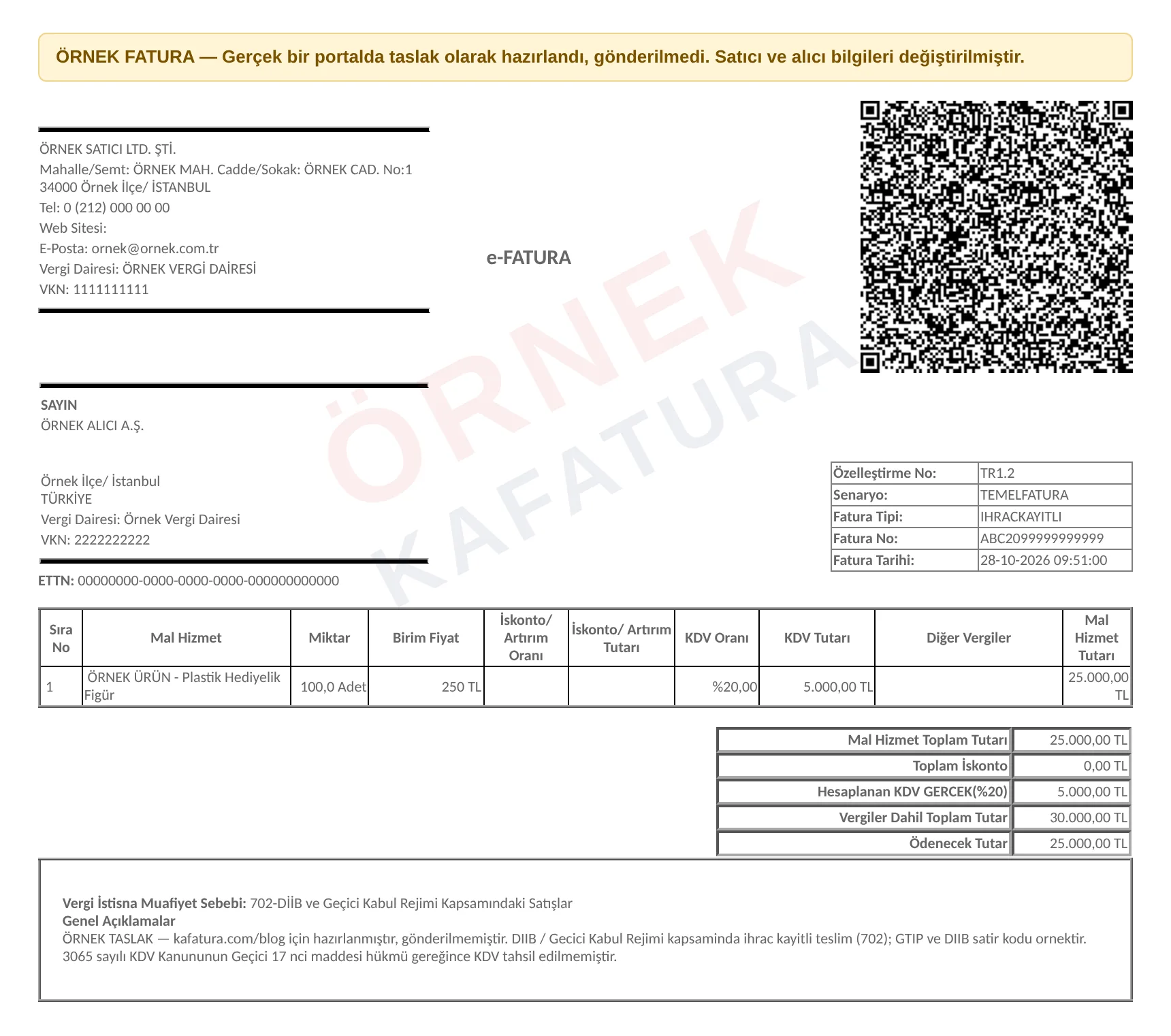
Points to note in the image:
- The bottom box reads Tax Exemption Reason: 702-Sales under DİİB and the Temporary Admission Regime.
- For this code, the portal automatically added the statement "VAT has not been collected pursuant to Provisional Article 17 of VAT Law No. 3065."
- The GTİP and line code don't appear in this preview template; check these two fields in the line on the form screen before sending the document.
702 export-registered invoice step by step
The portal's "Create Invoice" screen is divided into sections from top to bottom; on the right side sit the "Invoice Summary" panel and the action buttons. We followed the steps in the order they appear on screen.
1. Basic information: buyer, scenario and invoice type
We started typing the buyer's name in the "Buyer List" field and selected it from the registered buyers. With the selection, the VKN field and the buyer details in the lower section filled in automatically. Because the buyer is a registered e-Fatura user, the document was prepared as an e-Fatura; an e-Fatura is not issued to a buyer who is not an e-Fatura user.
We selected Basic e-Invoice as the "Scenario" and Export-Registered as the "Invoice Type". The Commercial scenario can also be selected; the difference lies in the acceptance/rejection flow, which we detail in our article on e-Fatura scenarios and invoice types.
2. Buyer information
The title, country, province, district, tax office and "Alias" (the buyer's e-Fatura mailbox address) came from the registered buyer. Phone, email, postal code and full address are optional. We hide this information in the example.
3. Invoice information and additional information
The "Invoice Issue Date" came in as today's date. We selected Turkish Lira as the currency, "Default" as the template and the default prefix. The draft has no invoice number; the number is assigned when the invoice is created. In this example, we didn't touch the online sale, dispatch note, order, carrier and bank boxes in the "Additional Information" section.
4. Product/service line and code 702
In the line, we entered the product name, a quantity of 100 pieces and a unit price of 250 TL, and selected a VAT rate of 20%. When the screen is narrow, some columns are hidden; the "Expand Table" button shows all columns in a pop-up window.
From the "Export-Registered Sale List" column, we selected code 702 - Sales under DİİB and the Temporary Admission Regime. As soon as the selection was made, two new mandatory columns were added to the line:
- GTIP: This field, which has an info icon, asks for the 12-digit customs tariff statistical position.
- Line Code: Asks for the 11-digit code showing the line in the buyer's DİİB (it appears as ALICIDIBSATIRKOD in the e-Fatura document).
5. Invoice note and saving
In the "Invoice Note" field, we wrote that the draft is a sample and will not be sent. Then we pressed the "Save to Drafts" button in the right panel; the message "Your e-Fatura has been saved as a draft." appeared on the screen. The "Create invoice" button was not pressed.
- Select buyerRegistered e-Fatura user
- Scenario and typeBasic e-Invoice · Export-Registered
- LineProduct, quantity, price, VAT 20%
- CodeSelecting 702 opens GTIP and Line Code
- SaveSave to Drafts
How do you fill in the GTİP and line code?
The GTİP field accepts digits only: 12 digits, with no dots or spaces. In the example, we entered 392640000000. This value corresponds to heading 3926.40, i.e., statuettes and ornamental articles of plastic; however, it was chosen as an example. On a real invoice, the GTİP is determined by the product itself; if you're unsure, ask your customs broker or the buyer exporter.
The 12345678901 we entered for the line code is entirely made up. The real value comes from the line in the buyer exporter's DİİB where the goods you deliver are listed. You can't generate this information yourself; ask the buyer for it in writing at the order stage.
Totals: VAT is calculated but not added to the amount payable
The sample invoice's totals came out as follows:
| Item | Sample amount |
|---|---|
| Product / Service Total Amount | 25,000.00 TL |
| Calculated VAT (20%) | 5,000.00 TL |
| Total Including Taxes | 30,000.00 TL |
| Amount Payable | 25,000.00 TL |
In an export-registered sale, VAT is calculated and shown on the invoice but not collected from the buyer. That's why the amount payable in the example came out as 25,000.00 TL, i.e., based on the total excluding VAT. The "Invoice Summary" panel on screen shows the same figures.
This calculation matters for the seller too: since VAT is not collected from the buyer, payment is collected on the amount excluding VAT. Prepare your payment plan and pro forma quote accordingly. How calculated but uncollected VAT is reported on the tax return, and what happens if the export doesn't take place, is a separate legislative matter; follow up on these details on the accounting side.
The difference between 701 and 702
Both codes are prepared almost identically on screen; the difference lies in scope and in the fields added to the line. We covered the 701 draft in our 701 export-registered invoice sample article.
| Topic | 701 | 702 |
|---|---|---|
| Scope | Export-registered sale under Article 11/1-c of VAT Law No. 3065 | Sale under DİİB and the temporary admission regime |
| Field added to the line | None | GTIP (12 digits) and Line Code (11 digits) |
| Who provides the additional information | Not required | The buyer exporter (DİİB line); GTİP based on the product |
| Invoice type | Export-Registered | Export-Registered |
Watch out when reopening the draft
In the portal, drafts are listed under the E-Fatura → Draft e-Invoices tab. The list shows the scenario, invoice type, last edit date, buyer title and VKN; each row has "Edit" and "Delete" options.
When does 702 come into play?
Sales you make to consumers on a marketplace are not export-registered; 702 is never used for these sales. The code comes into play when you ship the goods you produce or sell abroad not yourself, but through an exporting company. For example, if a seller producing souvenirs supplies goods wholesale to an exporter alongside its marketplace sales, and the exporter will use those goods under its own DİİB, 702 is considered.
In practice, the following questions are asked in order:
- Is the buyer a company that will export the goods?
- Does the buyer have a DİİB or temporary admission permit covering this delivery?
- Has the buyer given you the GTİP and DİİB line code in writing?
If the answer to all three is "yes", 702 is selected. If there's no DİİB but the delivery is made with export registration, 701 is used. If you ship the goods directly to the buyer abroad yourself, you issue an export invoice of the Exemption (İstisna) type, not an export-registered one.
Preview checklist before sending
Before converting the draft into an invoice, view the final version of the document with the "Invoice Preview" button in the right panel. In the preview, check the following:
- Is the invoice type "Export-Registered" and is the scenario correct?
- Do code 702, the 12-digit GTİP and the 11-digit line code appear on every line?
- Is the calculated VAT shown but not added to the amount payable?
- Is any temporary wording you wrote while drafting still left in the invoice note?
If everything is correct, you can issue the invoice with "Create invoice". Once this button is pressed, the document is delivered to the buyer; for cancellation and return processes, see our e-Fatura cancellation and returns guide.
Common mistakes
- Missing digits: The GTİP has 12 digits and the line code 11. Entering one digit too few or too many causes the invoice to be rejected.
- Entering the GTİP with dots: The "3926.40.00.00.00" format seen on customs documents is not entered into the field as is; the field expects only 12 digits.
- Issuing 702 to a buyer without a DİİB: If the buyer has no DİİB or temporary admission permit covering this delivery, 702 is not used; for a general export-registered delivery, select 701.
- Wrong invoice type: 7xx codes are not valid with the Exemption type; the type must be Export-Registered.
- Collecting VAT: Calculated VAT is not added to the amount payable; VAT is not requested from the buyer.
Since scope and document requirements may vary depending on the nature of the transaction, confirm with your certified public accountant (mali müşavir) before issuing your first 702 invoice. You can find the drafts we prepared for other invoice types in our sample invoice drafts section.
Frequently asked questions
Which fields are mandatory with code 702?
When 702 is selected, a 12-digit GTİP and an 11-digit line code (ALICIDIBSATIRKOD) showing the line in the buyer's DİİB become mandatory on every product line.
Where do I find the DİİB line code?
The buyer exporter provides the line code; it shows the line in their own DİİB where the goods you deliver are listed. Ask for it in writing at the order stage.
Is VAT collected on a 702 invoice?
No. VAT is calculated and shown on the invoice but not collected from the buyer; the amount payable is the total excluding VAT.
What is the difference between 702 and 701?
701 is for general export-registered sales (VAT Law (KDVK) Article 11/1-c) and requires no additional fields. 702 is for sales under DİİB and the temporary admission regime; it requires the GTİP and line code.
Resources
#export-registered invoice#code 702#DİİB#GTİP#sample invoice
Kafatura Editorial Team
We answer the everyday questions of marketplace sellers using a verified regulatory knowledge base. If you spot an error or something out of date, please let us know.
This article is translated from the Turkish original; regulatory references apply to Türkiye. Read the Turkish original →