How to Issue a VAT Withholding Invoice: Sample Draft with Code 625
We walk you field by field through a VAT withholding invoice draft we prepared on a real e-invoice portal for code 625 commercial advertising services: scenario, type, withholding column, the 3/10 calculation and the 12,000 TL threshold.
Last checked against regulations: October 28, 2026
Contents
- VAT withholding invoice draft: sample summary
- Sample invoice: draft preview
- Step by step: how do you prepare a VAT withholding invoice draft?
- How is the withholding amount calculated?
- A lesson on the threshold: why did we make the example 20,000 TL?
- Choosing the right withholding code
- Recording on the seller and buyer side
- Checklist before turning the draft into an invoice
A VAT withholding invoice is an invoice where part of the VAT (KDV) is declared and paid by the buyer instead of the seller. In this guide, we actually prepared a VAT withholding (tevkifat) invoice draft on an e-invoice (e-Fatura) portal and walk you through every field on the screen in order. The example uses code 625, commercial advertising services. We have hidden the buyer's details and left out the sender's name.
A draft is a working copy that is not sent to the Turkish Revenue Administration (GİB) and does not receive an invoice number. That is why preparing a draft first is the safest way to try out a new invoice type. For the full list of withholding codes and their rates, see our guide to VAT withholding codes and rates.
VAT withholding invoice draft: sample summary
Here is a summary of the draft we prepared. The amounts are a sample calculation; in your own transaction, the tax base and the code will differ.
| Field | Value in the sample draft |
|---|---|
| Buyer | Sample Buyer Inc. (VKN hidden) |
| Scenario | Basic e-invoice |
| Invoice type | Withholding (Tevkifat) |
| Line | SAMPLE SERVICE - Commercial Advertising Service |
| Quantity / unit | 1 Piece |
| Unit price | 20,000 TL (sample) |
| VAT rate | 20% |
| Withholding code | 625 - Commercial advertising services (3/10) |
| Calculated VAT | 4,000.00 TL (sample) |
| Calculated VAT withholding | 1,200.00 TL (sample) |
| Amount payable | 22,800.00 TL (sample) |
Here is how the invoice works: the seller shows the full VAT on the invoice but collects from the buyer only the portion not subject to withholding. The buyer pays the withheld portion through its own tax return.
Sample invoice: draft preview
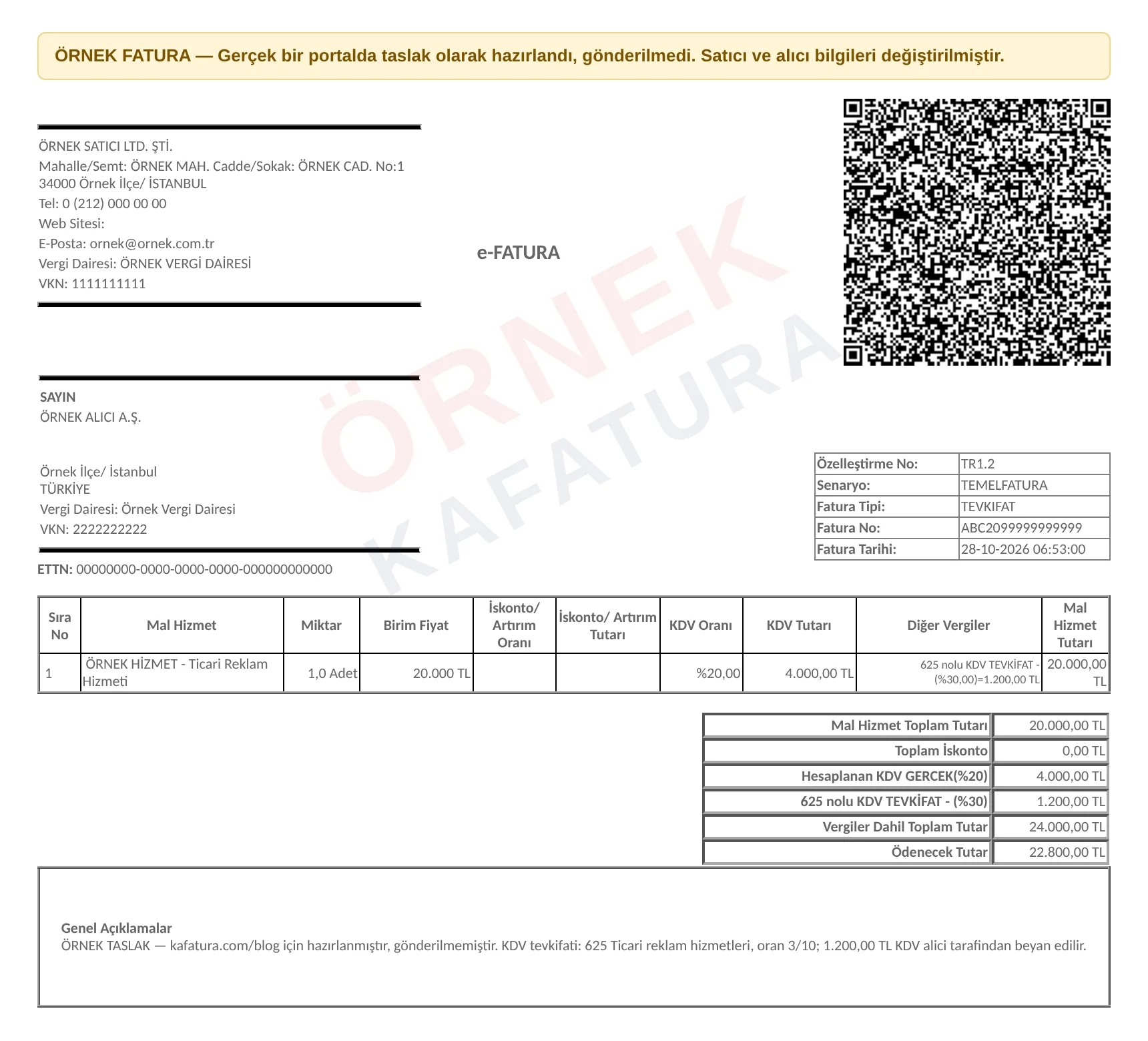
The image below is the draft's Invoice Preview output from the portal. The seller and buyer details, the ETTN and the QR code data have been changed; the product, amount, code and note fields are the same as in the draft. ABC2099999999999 in the Invoice No field is a placeholder generated for the preview; the real number is assigned when the invoice is created.
What to look for in the image:
- In the line's Other Taxes column, withholding no. 625 appears at a rate of 30% with a sample amount of 1,200.00 TL.
- Under Totals, the sample calculation shows VAT of 4,000.00 TL, a separate withholding no. 625 line of 1,200.00 TL and an Amount Payable of 22,800.00 TL (sample total).
- The difference between the total including taxes (24,000.00 TL) and the amount payable equals the withheld VAT.
Step by step: how do you prepare a VAT withholding invoice draft?
On the portal, the Create Invoice screen is divided into sections from top to bottom. On the right side are the invoice summary and the Invoice Preview, Save to Drafts, Create invoice and Cancel buttons. We followed the steps below in this order.
- Basic InformationBuyer, VKN, scenario and invoice type
- Buyer InformationTitle, address, tax office, alias
- Invoice InformationDate, currency, template, prefix
- Product/ServiceLine, VAT rate and withholding code
- Totals and NoteAmount payable after withholding
- Save to DraftsNot sent, no number assigned
1. Basic Information
When we selected a saved buyer from the Buyer List field, the Turkish ID number (TCKN) / tax ID number (VKN) filled in automatically. Because the buyer is a registered e-invoice user, we chose Basic e-invoice as the Scenario; the Commercial scenario could also have been used. We explain the difference between scenarios in our guide to e-invoice scenarios and invoice types.
The Invoice Type list offers Sales, Return, Withholding, Withholding Return, Exemption, Special Tax Base and Export-Registered. Here we chose Withholding. After this selection, a mandatory Withholding column is added to the product table.
2. Buyer Information
When the saved buyer was selected, the title, country, province, district, tax office and Alias (the buyer's e-invoice mailbox address) filled in automatically. Phone, email, postal code and full address are optional. If the buyer is not saved, you can fill in these fields manually and store them with Add to My Saved Buyers. In the example, we refer to the buyer as "Sample Buyer Inc."; we do not publish its real title or VKN.
3. Invoice Information and Additional Information
The Invoice Issue Date came pre-filled with today's date and time. The Currency was Turkish lira, the Invoice Template was the default and the Invoice Prefix was the account's default prefix. The invoice number stays blank in the draft; the number is assigned based on this prefix the moment the invoice is created.
The Additional Information section has checkboxes for Online sale, Invoice Number, Dispatch Note Information, Order Information, Carrier and Bank/Payment. Since this is a service invoice, we left all of them unchecked.
4. Product/Service line and withholding code
On a narrow screen, the table hides some columns; we used the Expand Table button to see all of them. We filled in the line as follows:
- Product Name: SAMPLE SERVICE - Commercial Advertising Service
- Quantity and Unit: 1, Piece
- Unit Price: 20,000 TL as a sample amount
- VAT Rate: 20%
- Withholding: we typed "625" in the search box and selected 625 - Commercial advertising services
The portal displays the rate for this option as "30%". The legislation expresses the same rate as 3/10; the two are the same thing. As soon as the code was selected, the summary on the right and the Totals section were recalculated.
5. Totals and Invoice Note
The Totals section showed these lines: Product/Service Total Amount 20,000.00 TL, Calculated VAT (20%) 4,000.00 TL, Total Amount Including Taxes 24,000.00 TL, −1,200.00 TL on the withholding line (the portal shows the rate as 30%) and Amount Payable 22,800.00 TL (sample calculation).
In the Invoice Note field, we wrote: "Sample draft … 625, rate 3/10; 1,200.00 TL VAT is declared by the buyer." Stating the code and rate clearly in the note makes things easier for whoever records the invoice in the books.
On the portal, the withholding line in the Totals section is labeled "Calculated VAT Withholding" and shows the rate in parentheses. This line is shown as a negative value because the amount is deducted from what the seller receives. The difference between the total including taxes and the amount payable always equals the withheld VAT. When checking the invoice, the quickest verification is to compare this difference with 3/10 of the calculated VAT.
6. Save to Drafts
Finally, we clicked the Save to Drafts button on the right. The message "Your e-invoice has been saved as a draft." appeared on the screen. The draft appears in the E-Invoice → Draft e-Invoices list with its scenario, invoice type, last edit date and buyer title. Edit takes you back to the same form; the invoice is not sent to the buyer unless you click Create invoice.
How is the withholding amount calculated?
Three numbers matter on a VAT withholding invoice: the tax base, the calculated VAT and the withheld VAT. Here is the calculation in the sample draft:
Withholding=Calculated VAT × 3/10
- Calculated VAT
- tax base × 20% (4,000.00 TL in the example)
- 3/10
- withholding rate for code 625
Örnek (sample) calculation: since the tax base is 20,000 TL, the VAT is 4,000 TL and the withholding is 1,200 TL, the invoice amount the buyer pays the seller is 22,800 TL. The seller reports 2,800 TL of VAT on its own return; the buyer declares the 1,200 TL in its capacity as the responsible party. The portal does this calculation itself, but choosing the correct code and rate is your responsibility.
A lesson on the threshold: why did we make the example 20,000 TL?
When we first prepared the draft, we entered a unit price of 10,000 TL. The total including VAT came to 12,000 TL, and the portal calculated the withholding without any problem. However, partial VAT withholding has a lower limit.
The sample amount in the first draft did not exceed the threshold; it was exactly equal to it. In other words, in a real transaction this invoice should have been issued without withholding, as a Sales type invoice. The portal did not prevent this; it still calculated the withholding. That is why we raised the example to 20,000 TL and updated the draft. The lesson: checking the threshold is up to you. For details on the threshold, see our article on the invoicing threshold.
The same logic applies to split invoices. Splitting a job into smaller invoices to stay below the threshold does not eliminate the withholding obligation; the transaction amount is assessed as a whole.
Choosing the right withholding code
The withholding code depends on the type of work and on who must apply the withholding. For some items, only designated buyers (such as public institutions and large taxpayers) apply the withholding; for others, any VAT-registered taxpayer buyer does. Code 625, commercial advertising services, falls into the second group: if the buyer is a VAT taxpayer, withholding applies.
A few commonly encountered codes as examples:
| Code | Transaction | Rate | Who applies the withholding |
|---|---|---|---|
| 625 | Commercial advertising services | 3/10 | VAT taxpayers and designated buyers |
| 624 | Freight transportation service | 2/10 | VAT taxpayers and designated buyers |
| 612 | Cleaning service | 9/10 | VAT taxpayers and designated buyers |
| 615 | All kinds of printing and publishing services | 7/10 | Designated buyers only |
The code list also includes general items such as "other services" (616) and "others" (650). Recording work that has a specific code under a general code can lead to the wrong rate and an objection from the buyer. First check whether the work has a specific code; if you are not sure, confirm with your certified public accountant (mali müşavir).
Recording on the seller and buyer side
On a VAT withholding invoice, both parties declare part of the VAT. The seller deducts the withheld portion from the VAT calculated on the invoice and reports the remaining VAT as calculated VAT on its own return. In the sample calculation, this amount is 2,800 TL. The buyer, in turn, declares and pays the 1,200 TL it withheld in its capacity as the responsible party and can deduct the same amount under the general rules.
Marketplace sellers run into this most often with advertising, shipping and service purchases. For example, when you buy services from an advertising agency, the invoice you receive may be a withholding invoice; this time, you declare the withholding. You can use the same table to check whether the code and rate on the incoming invoice are correct.
Checklist before turning the draft into an invoice
Before converting the draft into a real invoice with Create invoice, check the following:
- Is the invoice type Withholding, and does the scenario fit the buyer's status?
- Does the amount including VAT exceed the 12,000 TL threshold? If not, the invoice should be issued as a Sales type.
- Does the withholding code match the nature of the work, and is the rate the same as in the legislation?
- Is the buyer obligated to apply withholding under this code (is it a VAT taxpayer or a designated buyer)?
- Does the invoice note state the code and rate?
- In the PDF view via Invoice Preview, are the withholding line and the amount payable correct?
If the transaction is returned, the return of a VAT withholding invoice is issued with a separate type. In the follow-up to this draft, our withholding return invoice sample draft article, we show the return of the same code 625 transaction step by step.
Frequently asked questions
Which invoice type do you select for a VAT withholding invoice?
Select Withholding (Tevkifat) as the invoice type. After this selection, a mandatory Withholding column opens in the product table, and you enter a withholding code on each line.
What is the withholding rate for code 625?
The withholding rate for code 625, commercial advertising services, is 3/10. The portal displays this rate as 30%; the two are the same.
Above what amount does withholding apply?
For partial withholding, withholding applies if the amount including VAT exceeds the VUK Article 232 invoicing threshold (12,000 TL in 2026). If the amount does not exceed the threshold, no withholding is applied.
Is an invoice saved as a draft sent to the buyer?
No. A draft is not sent and does not receive an invoice number. Only an invoice created with the Create invoice button is delivered to the buyer.
Resources
#VAT withholding invoice#VAT withholding#code 625#sample invoice#e-invoice draft
Kafatura Editorial Team
We answer the everyday questions of marketplace sellers using a verified regulatory knowledge base. If you spot an error or something out of date, please let us know.
This article is translated from the Turkish original; regulatory references apply to Türkiye. Read the Turkish original →