How to Issue an Export-Registered Invoice 701: A Sample Draft Walkthrough
An export-registered invoice 701 is an e-invoice (e-Fatura) for a delivery to an exporter on which VAT is calculated but not collected. Using a sample draft we prepared on the portal, we walk through every field step by step.
Last checked against regulations: October 28, 2026
Contents
- When is an export-registered invoice 701 issued?
- Draft document: sample invoice with code 701
- Sample invoice: draft preview
- Step by step: how do you prepare an export-registered invoice 701 draft?
- Common mistakes on export-registered invoices
- Multiple products and updating the draft
- From draft to invoice: checklist before sending
An export-registered invoice (ihraç kayıtlı fatura) 701 is the type of e-invoice (e-Fatura) showing that VAT (KDV) was calculated but not collected from the buyer on a delivery you make to an exporter on the condition that the goods are exported. In this guide, we go field by field through a sample document with code 701 that we actually prepared on an e-invoice portal and saved as a draft. The invoice was not sent; only a draft was created.
The recipient details in the example have been hidden. Screen names are taken from the private integrator portal we used; on most portals, the fields follow the same logic under similar names.
When is an export-registered invoice 701 issued?
Code 701 is for export-registered sales under Article 11/1-c of VAT Law No. 3065. You do not ship the goods abroad yourself; you deliver them to an exporting company, and the exporter exports the goods. VAT is calculated on the invoice but not collected from the exporter.
Your consumer sales on marketplaces do not fall under this scope. For example, if you supply the figurines you produce wholesale to a foreign trade company that is going to export them, an export-registered invoice comes into play. If you ship the goods directly to the buyer abroad yourself, you issue an invoice of the ISTISNA type with an exemption code, not an export-registered one.
We summarized the differences between the four export-registered codes in our export-registered invoice codes article. In short:
| Code | Use | Sample draft |
|---|---|---|
| 701 | Export-registered sale under VAT Law Article 11/1-c | This article |
| 702 | Sale under the inward processing authorization certificate (DİİB) and temporary admission regime | 702 sample draft |
| 703 | Export-registered sale under Article 8/2 of the special consumption tax (ÖTV) Law | Goods subject to ÖTV |
| 704 | VAT 11/1-c and ÖTV 8/2 together | Goods subject to VAT and ÖTV |
Matters such as the conditions for delivery with export registration and the period within which the export must be completed may vary depending on your transaction; confirm these details with your certified public accountant (mali müşavir).
Draft document: sample invoice with code 701
The table below summarizes the draft we saved on the portal. The amounts are a sample calculation.
| Section | Field | Value in the draft |
|---|---|---|
| Basic Information | Recipient List | Sample Recipient A.Ş. (selected from saved recipients) |
| Basic Information | Turkish ID No. / Tax No. | (hidden) |
| Basic Information | Scenario | Basic e-Invoice |
| Basic Information | Invoice Type | Export-Registered |
| Recipient Information | Title, Province, District, Tax Office | Auto-filled from the saved recipient (hidden) |
| Recipient Information | Alias | urn:mail:...@ornek (hidden) |
| Invoice Information | Invoice Issue Date | The day the draft was prepared |
| Invoice Information | Currency / Template / Prefix | Turkish lira / Default / default prefix |
| Product/Service | Product Name | SAMPLE PRODUCT - Plastic Souvenir Figurine |
| Product/Service | Quantity, Unit | 100, Piece |
| Product/Service | Unit Price | 250 TL (sample) |
| Product/Service | VAT Rate | 20% |
| Product/Service | Export-Registered Sales List | 701 - Export-Registered Sale under Art. 11/1-c of VAT Law No. 3065 |
| Invoice Note | Note | SAMPLE DRAFT … Export-registered delivery under Article 11/1-c of VAT Law No. 3065; VAT has not been collected. |
In the totals section, the sample draft produced the following result:
| Total line | Sample amount |
|---|---|
| Product / Service Total Amount | 25,000.00 TL |
| Calculated VAT (20%) | 5,000.00 TL |
| Total Including Taxes | 30,000.00 TL |
| Payable Amount | 25,000.00 TL |
The key point here: VAT is calculated but not added to the payable amount. On the sample invoice, the calculated VAT of 5,000.00 TL is visible, while the total the buyer will pay remains 25,000.00 TL excluding VAT.
- RecipientSaved recipient is selected, tax details fill in
- Scenario and typeBasic e-Invoice + Export-Registered
- LineProduct, quantity, price, VAT rate
- Code701 from the Export-Registered Sales List
- NoteLaw article and uncollected VAT note
- DraftSave to Drafts
Sample invoice: draft preview
The image below is the draft's Invoice Preview output from the portal. The seller and recipient details, ETTN and QR code data have been changed; the product, amount, code and note fields are the same as in the draft. ABC2099999999999 in the Invoice No. field is a placeholder assigned for the preview; the real number is assigned when the invoice is created.
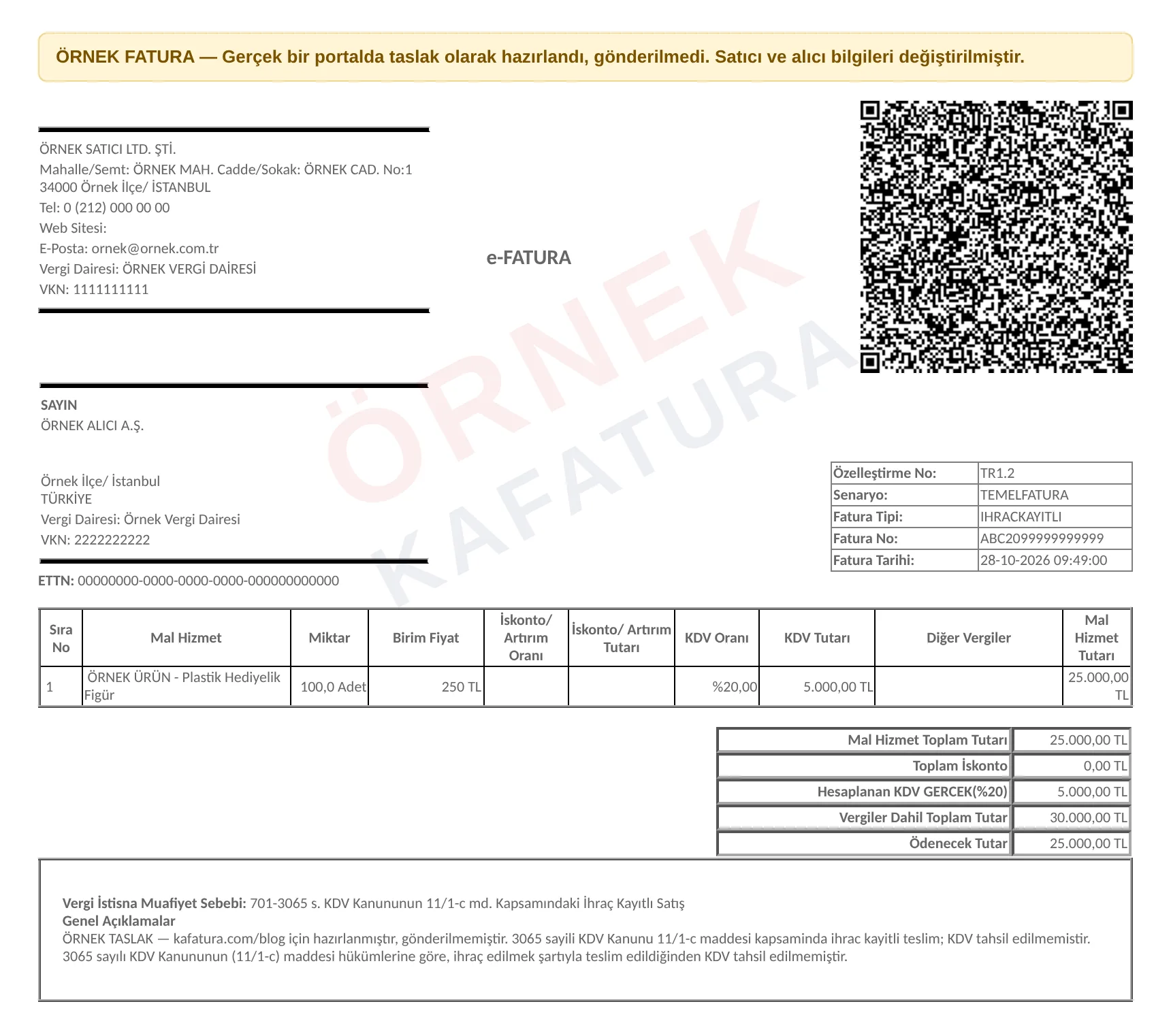
Points to note in the image:
- Invoice Type: IHRACKAYITLI appears in the information box at the top right.
- The line shows a VAT Amount of 5,000.00 TL, while the Totals still show Payable Amount 25,000.00 TL. VAT is calculated but not collected.
- The bottom box contains the line Tax Exemption Reason: 701 and the statement the portal adds automatically: "Under the provisions of Article (11/1-c) of VAT Law No. 3065 … VAT has not been collected."
- When we reopened the draft with Edit, the Export-Registered Sales List column came up empty; we selected 701 again before previewing.
Step by step: how do you prepare an export-registered invoice 701 draft?
1. Open the Create Invoice screen and select the recipient
On the Create Invoice screen, the Basic Information section comes first. When you select a saved recipient from the Recipient List, the tax number, title, province, district, tax office and alias fields fill in automatically. If your recipient is not saved, you can type in the tax number and enter the details manually, then store them with Add to My Saved Recipients.
The alias field is the recipient's e-invoice mailbox address. Because the recipient is a registered e-invoice user, the document is issued as an e-invoice; if there is no alias, the recipient is not an e-invoice user and this route does not work.
2. Select the scenario and invoice type
In the example, Basic e-Invoice was selected as the scenario and Export-Registered as the invoice type. The Commercial scenario can also be selected; a commercial invoice gives the recipient the option to accept or reject it. You can find the differences between the scenarios in our e-invoice scenarios and invoice types guide.
When you set the invoice type to Export-Registered, a new column called Export-Registered Sales List is added to the product table. This column does not appear for other types.
3. Check the invoice information
The Invoice Information section contains the issue date, currency, invoice template and invoice prefix. In the example, all of them were left at their defaults. The draft does not have an invoice number yet; the number is assigned according to the selected prefix when you click Create invoice.
The internet sale, dispatch note, order, carrier and bank fields in the Additional Information section were not checked in this example. When you work with an exporter, adding order or dispatch note details makes record tracking easier.
4. Fill in the product line and select 701
In the product table, you enter the product name, quantity, unit, unit price and VAT rate. Select the product's normal VAT rate; in the example, it is 20%. On a narrow screen, some columns may stay hidden; with Expand Table, you can see all columns in a single window.
The dropdown in the Export-Registered Sales List column showed the options 701, 702 and 703. In the example, 701 was selected. In the Totals section, VAT appears as calculated, but the payable amount remains the total excluding VAT.
5. Add the invoice note
On an export-registered invoice, stating the legal basis of the transaction in the note is common practice. The note in the example: "Export-registered delivery under Article 11/1-c of VAT Law No. 3065; VAT has not been collected." The note field is limited to 500 characters; you can store a note you use often with Add to My Saved Notes.
6. Preview and save as a draft
The Invoice Summary panel on the right shows the recipient, type, scenario and totals. Check the document with Invoice Preview, then click Save to Drafts. The notification "Your e-invoice has been saved as a draft." and a Go to saved drafts link appear on the screen.
The draft appears in the Draft e-Invoices list under the E-Invoice menu, along with its scenario, invoice type, last edit date and recipient. From there, you can open and complete it with Edit or remove it with Delete. The draft is not sent to the recipient; sending happens only with Create invoice.
Common mistakes on export-registered invoices
- Selecting the ISTISNA type: Codes 701, 702, 703 and 704 are valid in the Export-Registered type (and also in the return and Social Security Institution (SGK) types). The ISTISNA type is for exemption codes; if the code and the type do not match, the invoice fails the Turkish Revenue Administration (GİB) checks. For the list of exemption codes, see our e-invoice exemption codes guide.
- Confusing it with 301: 301 is the exemption code for exports of goods and is used when you ship the goods abroad directly yourself. If you are delivering the goods to an exporter in Türkiye, the correct code comes from the 701 family.
- Setting the VAT rate to 0%: 0% is not a VAT rate. In an export-registered sale, you select the product's normal rate; the code is what ensures VAT is not collected.
- Selecting 701 where 702 is required: If the buyer is purchasing under an inward processing authorization certificate (DİİB) or temporary admission, 702 is used; with this code, a customs tariff code (GTİP) and a DİİB line code are mandatory on every line. Details are in our 702 sample draft article.
- Leaving the note blank: Even though the note does not appear as a mandatory field, stating the legal basis of the transaction provides clarity for both the buyer and your own records.
Multiple products and updating the draft
An exporter usually receives several different products rather than a single item. When you open a new line in the product table with Add Product/Service, the Export-Registered Sales List column is selected separately for each line. Selecting the code only on the first line and leaving the others blank is a common omission; check every line one by one.
Do not combine items in the same invoice where some are delivered with export registration and some are normal sales. On an invoice of the export-registered type, every line requires an export-registered code; issuing a separate sales invoice for normal sales makes the records easier to follow.
When you later open a saved draft from the Draft e-Invoices list with Edit, all fields come back onto the form. We recommend checking the code columns and totals once more in a reopened draft; especially if you changed the type or scenario, code-dependent columns may be reset. When you click Save to Drafts again after making changes, the same draft is updated and no new record is created in the list.
If the currency is not the Turkish lira, you select a foreign currency in the Currency field and enter the exchange rate. The sample draft used the Turkish lira; in a foreign-currency export-registered sale, separately check that the exchange rate and amounts are correct.
From draft to invoice: checklist before sending
- Are the recipient's tax number and alias correct?
- Is the invoice type Export-Registered?
- Is a code selected in the Export-Registered Sales List column on every line?
- Is the VAT rate the product's normal rate?
- Is the payable amount the same as the total excluding VAT?
- Does the note state the law article?
When you open a draft that passes these checks with Edit and click Create invoice, the document is sent to the recipient. We have gathered sample drafts for other invoice types in the sample invoice drafts section.
Frequently asked questions
Is VAT shown on an export-registered invoice?
Yes. VAT is calculated at the product's normal rate and shown on the invoice, but it is not collected from the buyer; the payable amount is the total excluding VAT.
Under which invoice type is code 701 selected?
It is selected under the Export-Registered (IHRACKAYITLI) type; 7xx codes are also valid in the return and SGK types. It cannot be used with the ISTISNA type.
Is an invoice saved as a draft sent to the recipient?
No. A draft stays only in your list and does not get an invoice number; it is sent to the recipient with Create invoice.
What is the difference between 701 and 702?
701 is for general export-registered sales. 702 is used for sales under a DİİB or temporary admission and requires a GTİP and a DİİB line code on every line.
Resources
#export-registered invoice#code 701#e-invoice draft#sample invoice#VAT 11/1-c
Kafatura Editorial Team
We answer the everyday questions of marketplace sellers using a verified regulatory knowledge base. If you spot an error or something out of date, please let us know.
This article is translated from the Turkish original; regulatory references apply to Türkiye. Read the Turkish original →